Magic Link Documentation
Complete guide to passwordless authentication
Quick Navigation
Quick Start
Get up and running with Magic Link authentication in 4 simple steps!
Step 1: Create a Client Token
- Log in to your Magic Link account
- Click your profile icon → Account Settings
- Navigate to the Client Token section
- Click "Create New Client Token"
- Copy your token immediately (shown only once!)
Step 2: Create a Configuration
- Go to the Dashboard
- Click "Create New Configuration"
- Fill in the required fields (name, redirect URL, expiry time)
- Click "Save"
- Copy your Configuration ID (looks like
cfg_abc123xyz)
Step 3: Request a Magic Link
Send a POST request to create and email a magic link. This endpoint can be called from your browser frontend or backend server:
curl -X POST "https://www.lynxidentity.com/auth/magic-link/request" \
  -H "Content-Type: application/json" \
-d '{"email":"user@example.com","configuration_id":"cfg_YOUR_CONFIGURATION_ID"}'/magic-link/server-request instead.Expected response:
HTTP/1.1 200 OK
Content-Type: application/json

{
  "success": true,
  "message": "Magic link sent successfully",
  "expires_in_seconds": 900
}
Step 4: Verify the Magic Link Token
When the user clicks the magic link, verify the token server-to-server:
curl -X GET "https://www.lynxidentity.com/auth/magic-link/verify?token=THE_TOKEN_FROM_THE_EMAIL" \
  -H "Authorization: Bearer mlt_YOUR_CLIENT_TOKEN"
Expected response:
HTTP/1.1 200 OK
Content-Type: application/json

{
  "success": true,
  "message": "User verified. Frontend SHOULD POST the returned access_token to the BFF endpoint /auth/start to create a server session (HttpOnly cookie).",
  "token_flow": {
    "note": "Do not expose access_token to client-side storage.",
    "post_to_bff_example": "fetch('/auth/start', { method: 'POST', headers: {'Content-Type':'application/json'}, body: JSON.stringify({ access_token: '<ACCESS_TOKEN>' }), credentials: 'include' })"
  },
  "user_id": "user_550e8400",
  "email": "user@example.com",
  "redirect_url": "https://yourapp.com/dashboard"
}- Explore Use Cases for common implementation patterns
- See API Reference for full API specifiction
- See Code Examples for full backend/frontend integration
- Review Security Best Practices before going to production
Common Use Cases
Real-world implementation patterns for different scenarios.
Use Case 1: Magic Links: The Frictionless Path to Customer Acquisition
Magic links reduce the "activation tax" that normally kills conversion. Instead of forcing a new user to create a password, confirm it, remember it, and then log in again later, you collapse all of that into a single tap. That makes them ideal for low‑friction onboarding and lightweight identity creation.
Here's why they're so effective:
- Minimal friction: No password creation, no cognitive load, no drop‑off during signup.
- Instant identity binding: An email address becomes a verified identifier the moment the user clicks the link.
- Higher conversion rates: Fewer steps = more users completing onboarding and reaching the "aha" moment.
- Great for cold traffic: Ads, referrals, QR codes, and email campaigns convert better when the entry point is one click.
- Secure by default: Passwordless flows eliminate weak passwords, reuse, and credential stuffing.
- Perfect for transactional intent: If the goal is to get someone to sign up and buy quickly, magic links remove the biggest blockers.
When this strategy shines
Magic links are especially strong when you want to create just enough identity to personalize, track, or transact — without forcing a full account setup. Think:
- E‑commerce guest checkout with optional account creation
- SaaS free trials where speed matters
- Marketplaces where buyers and sellers need quick access
- Content platforms that want to capture an email before showing premium content
- Mobile apps that want to reduce app‑store drop‑off
In all of these, the magic link acts as a "soft identity" that can later be deepened into a full profile if needed.
The nuance
The only caveat is that magic links rely on email access, so they're strongest when:
- The user is already in their inbox
- The device flow is smooth (mobile email → app or web)
- You don't need high‑assurance identity verification upfront
If those conditions hold, magic links are a growth engine.
Implementation
Show code
// Backend: Customer acquisition endpoint
app.post('/api/auth/acquire-customer', async (req, res) => {
  const { email, source = 'website' } = req.body;

  // Check if user already exists
  const existingUser = await db.users.findByEmail(email);
  if (existingUser) {
    // For acquisition, we can still send the link to log them in
    // Or redirect to login flow - here we'll proceed with magic link
  }

  // Send acquisition magic link (no auth required - can be called from browser or server)
  await fetch(process.env.MAGIC_LINK_API_URL + '/auth/magic-link/request', {
    method: 'POST',
    headers: {
      'Content-Type': 'application/json'
    },
    body: JSON.stringify({
      email: email,
      configuration_id: process.env.MAGIC_LINK_CONFIG_ID,
      metadata: {
        flow: 'customer_acquisition',
        source: source,
        timestamp: Date.now()
      }
    })
  });

  res.json({
    success: true,
    message: 'Welcome! Check your email to get started.'
  });
});

// Verification handler for acquisition
app.get('/api/auth/verify-acquisition', async (req, res) => {
  const { token } = req.query;

  const verifyResponse = await fetch(
    `${process.env.MAGIC_LINK_API_URL}/auth/magic-link/verify?token=${token}`,
    {
      headers: { 'Authorization': `Bearer ${process.env.MAGIC_LINK_CLIENT_TOKEN}` }
    }
  );

  const data = await verifyResponse.json();

  if (data.success) {
    // Create or update user account
    let user = await db.users.findByEmail(data.email);
    if (!user) {
      user = await db.users.create({
        email: data.email,
        status: 'active',
        acquiredAt: new Date(),
        acquisitionSource: data.metadata?.source || 'unknown'
      });
    }

    // Create session
    req.session.userId = user.id;
    req.session.acquisitionFlow = true;

    // Track acquisition metrics
    await db.analytics.track('customer_acquired', {
      userId: user.id,
      source: data.metadata?.source,
      timestamp: data.metadata?.timestamp
    });

    res.json({
      success: true,
      redirect: '/onboarding?new=true',
      user: { id: user.id, email: user.email }
    });
  } else {
    res.status(400).json(data);
  }
});
Frontend Example
Show code
function CustomerAcquisitionForm() {
  const [step, setStep] = useState('acquire'); // 'acquire' or 'sent'
  const [email, setEmail] = useState('');
  const [source, setSource] = useState('website');

  const handleSubmit = async (e) => {
    e.preventDefault();
    await fetch('/api/auth/acquire-customer', {
      method: 'POST',
      headers: { 'Content-Type': 'application/json' },
      body: JSON.stringify({ email, source })
    });
    setStep('sent');
  };

  return (
    <div className="acquisition-form">
      {step === 'acquire' ? (
        <form onSubmit={handleSubmit}>
          <h2>Get Started Instantly</h2>
          <p>No passwords, no hassle - just your email.</p>
          <input
            type="email"
            placeholder="Enter your email"
            value={email}
            onChange={(e) => setEmail(e.target.value)}
            required
          />
          <select value={source} onChange={(e) => setSource(e.target.value)}>
            <option value="website">Website</option>
            <option value="ad">Advertisement</option>
            <option value="referral">Referral</option>
            <option value="social">Social Media</option>
          </select>
          <button>Get Magic Link</button>
        </form>
      ) : (
        <div className="success-message">
          <h2>Check Your Email!</h2>
          <p>We've sent a magic link to {email}</p>
          <p>Click it to instantly access your account.</p>
        </div>
      )}
    </div>
  );
}
Use Case 2: Password Reset Flow
Replace traditional password reset emails with secure magic links.
User Journey
- User requests a password reset by entering their email.
- Backend generates and sends a magic link (time-limited) to the email.
- User clicks the link and the server verifies the token.
- Server issues a short-lived reset session/token and redirects to the reset form.
- User sets a new password; the server creates a logged-in session (or short-lived reset session), so the user does not need to sign in again - the flow completes without an extra login step.
Key difference vs. a typical password reset
- Typical reset: after setting a new password the user usually must sign in with that password (an extra step).
- Magic-link reset: clicking the emailed link proves ownership and the server can create a short-lived session or scoped reset session - the user normally does not need to sign in again.
- This removes one friction step (especially on mobile) while keeping the same token, expiry and single-use security controls.
Key difference vs. a typical email verification
- Typical: user signs up, clicks a verification link, and may still need to sign in separately.
- Magic-link verification: clicking the emailed link can both verify the address and create a session so the user is immediately logged in.
- Keep security controls: short expiry, single-use tokens, and allowlisted redirect URIs.
Implementation
Show code
// Backend: Password reset endpoint
app.post('/api/auth/reset-password', async (req, res) => {
  const { email } = req.body;

  // Check if user exists (optional - for privacy, always return success)
  const user = await db.users.findByEmail(email);

  if (user) {
    // Request magic link with custom redirect (no auth required)
    await fetch(process.env.MAGIC_LINK_API_URL + '/auth/magic-link/request', {
      method: 'POST',
      headers: {
        'Content-Type': 'application/json'
      },
      body: JSON.stringify({
        email: email,
        configuration_id: process.env.MAGIC_LINK_CONFIG_ID,
        // Optional: customize redirect for password reset flow
        metadata: { flow: 'password_reset' }
      })
    });
  }

  // Always return success to prevent email enumeration
  res.json({
    success: true,
    message: 'If an account exists, a reset link has been sent'
  });
});

// Verification handler with password reset context
app.get('/api/auth/verify-reset', async (req, res) => {
  const { token } = req.query;

  const verifyResponse = await fetch(
    `${process.env.MAGIC_LINK_API_URL}/auth/magic-link/verify?token=${token}`,
    {
      headers: { 'Authorization': `Bearer ${process.env.MAGIC_LINK_CLIENT_TOKEN}` }
    }
  );

  const data = await verifyResponse.json();

  if (data.success) {
    // Create temporary session for password reset only
    const resetToken = generateSecureToken();
    await db.passwordResetTokens.create({
      userId: data.user_id,
      token: resetToken,
      expiresAt: Date.now() + 15 * 60 * 1000 // 15 minutes
    });

    res.json({
      success: true,
      resetToken,
      redirect: '/reset-password?token=' + resetToken
    });
  } else {
    res.status(400).json(data);
  }
});
Frontend Example
Show code
function PasswordResetForm() {
  const [step, setStep] = useState('request'); // 'request' or 'sent'
  const [email, setEmail] = useState('');

  const handleSubmit = async (e) => {
    e.preventDefault();
    await fetch('/api/auth/reset-password', {
      method: 'POST',
      headers: { 'Content-Type': 'application/json' },
      body: JSON.stringify({ email })
    });
    setStep('sent');
  };

  return (
    <div>
      {step === 'request' ? (
        <form onSubmit={handleSubmit}>
          <h2>Reset Your Password</h2>
          <input
            type="email"
            placeholder="Enter your email"
            value={email}
            onChange={(e) => setEmail(e.target.value)}
            required
          />
          <button>Send Reset Link</button>
        </form>
      ) : (
        <div>
          <h2>Check Your Email</h2>
          <p>We've sent a password reset link to {email}</p>
          <p>Click the link to reset your password.</p>
        </div>
      )}
    </div>
  );
}
Use Case 3: Email Verification for New Users
Verify email addresses during registration without separate password creation.
User Journey
- User signs up with email (and optional name).
- Server creates an unverified account and sends a verification magic link.
- User clicks the link; server verifies the token and marks email verified.
- Server creates a session and redirects the user to the dashboard.
Key difference vs. a typical signup flow
- Typical: user creates account with password, then separately verifies email, then logs in with password.
- Magic-link verification: user enters email, clicks verification link, and is immediately logged in without password creation.
- This eliminates password friction and combines verification with authentication in one step.
Implementation
Show code
// Backend: Registration with email verification
app.post('/api/auth/register', async (req, res) => {
  const { email, name } = req.body;

  // Create unverified user
  const user = await db.users.create({
    email,
    name,
    emailVerified: false,
    status: 'pending_verification'
  });

  // Send verification magic link
  await fetch(process.env.MAGIC_LINK_API_URL + '/auth/magic-link/request', {
    method: 'POST',
    headers: {
      'Content-Type': 'application/json',
      'Authorization': `Bearer ${process.env.MAGIC_LINK_CLIENT_TOKEN}`
    },
    body: JSON.stringify({
      email: email,
      configuration_id: process.env.MAGIC_LINK_CONFIG_ID,
      metadata: {
        flow: 'email_verification',
        userId: user.id
      }
    })
  });

  res.json({
    success: true,
    message: 'Registration successful! Check your email to verify.'
  });
});

// Verification handler
app.get('/api/auth/verify-email', async (req, res) => {
  const { token } = req.query;

  const verifyResponse = await fetch(
    `${process.env.MAGIC_LINK_API_URL}/auth/magic-link/verify?token=${token}`,
    {
      headers: { 'Authorization': `Bearer ${process.env.MAGIC_LINK_CLIENT_TOKEN}` }
    }
  );

  const data = await verifyResponse.json();

  if (data.success) {
    // Mark email as verified
    await db.users.update(data.user_id, {
      emailVerified: true,
      status: 'active'
    });

    // Create session
    req.session.userId = data.user_id;

    res.json({
      success: true,
      redirect: '/dashboard'
    });
  } else {
    res.status(400).json(data);
  }
});
Use Case 4: Multi-Tenant B2B Login
Handle organization-specific login flows with different configurations.
User Journey
- User initiates login for a specific tenant/organization (e.g., enters email or selects org).
- Server sends a tenant-specific magic link to the user's email.
- User clicks the link; server verifies the token and confirms tenant membership.
- Server creates a tenant-scoped session and redirects to the tenant dashboard.
Key difference vs. a typical tenant login
- Typical: users select an organization (tenant) and enter credentials or use an SSO provider; organization-specific passwords or SSO configurations add friction.
- Magic-link: a logged-in user session is established without password entry, reducing setup and credential management overhead.
- Still enforce organization checks and limit token scope.
Implementation
Show code
// Backend: Tenant-specific login
app.post('/api/auth/login/:tenantId', async (req, res) => {
  const { tenantId } = req.params;
  const { email } = req.body;

  // Get tenant-specific configuration
  const tenant = await db.tenants.findById(tenantId);

  if (!tenant || !tenant.active) {
    return res.status(404).json({ error: 'Tenant not found' });
  }

  // Verify user belongs to this tenant
  const user = await db.users.findOne({
    email,
    tenantId
  });

  if (!user) {
    // Still return success for privacy
    return res.json({
      success: true,
      message: 'If an account exists, a login link has been sent'
    });
  }

  // Send magic link with tenant-specific config (no auth required)
  await fetch(process.env.MAGIC_LINK_API_URL + '/auth/magic-link/request', {
    method: 'POST',
    headers: {
      'Content-Type': 'application/json'
    },
    body: JSON.stringify({
      email: email,
      configuration_id: tenant.magicLinkConfigId, // Tenant-specific
      metadata: {
        tenantId: tenant.id,
        tenantName: tenant.name
      }
    })
  });

  res.json({
    success: true,
    message: 'Login link sent to ' + email
  });
});

// Tenant-specific verification
app.get('/api/auth/verify/:tenantId', async (req, res) => {
  const { tenantId } = req.params;
  const { token } = req.query;

  const verifyResponse = await fetch(
    `${process.env.MAGIC_LINK_API_URL}/auth/magic-link/verify?token=${token}`,
    {
      headers: { 'Authorization': `Bearer ${process.env.MAGIC_LINK_CLIENT_TOKEN}` }
    }
  );

  const data = await verifyResponse.json();

  if (data.success) {
    // Verify user belongs to tenant
    const user = await db.users.findOne({
      id: data.user_id,
      tenantId: tenantId
    });

    if (!user) {
      return res.status(403).json({ error: 'User not authorized for this tenant' });
    }

    // Create tenant-scoped session
    req.session.userId = data.user_id;
    req.session.tenantId = tenantId;

    res.json({
      success: true,
      redirect: `/${tenantId}/dashboard`
    });
  } else {
    res.status(400).json(data);
  }
});
Use Case 5: Temporary Guest Access
Provide time-limited access to specific resources without full account creation.
User Journey
- Resource owner requests a temporary guest link for a recipient email.
- Server creates a short-lived access token and sends a magic link to the recipient.
- Recipient clicks the link; server validates the token and expiry.
- Server creates a temporary guest session and redirects to the shared resource.
Key difference vs. sharing temporary credentials
- Typical: resource owners share passwords or create temporary accounts which require management and cleanup.
- Magic-link: one-time magic links grant immediate, time-limited guest access without account creation; tokens expire and are single-use, reducing long-term risk.
- Good practice: short expiry, explicit metadata (flow=guest_access), and strict verification on redemption.
Implementation
Show code
// Backend: Share a protected resource
app.post('/api/share/document/:docId', async (req, res) => {
  const { docId } = req.params;
  const { recipientEmail, expiresInHours = 24 } = req.body;

  // Verify sender has access to document
  const document = await db.documents.findById(docId);
  if (!document || document.ownerId !== req.session.userId) {
    return res.status(403).json({ error: 'Access denied' });
  }

  // Create temporary access token
  const accessToken = generateSecureToken();
  await db.sharedAccess.create({
    documentId: docId,
    email: recipientEmail,
    token: accessToken,
    expiresAt: Date.now() + expiresInHours * 60 * 60 * 1000
  });

  // Send magic link for guest access (no auth required)
  await fetch(process.env.MAGIC_LINK_API_URL + '/auth/magic-link/request', {
    method: 'POST',
    headers: {
      'Content-Type': 'application/json'
    },
    body: JSON.stringify({
      email: recipientEmail,
      configuration_id: process.env.MAGIC_LINK_GUEST_CONFIG_ID,
      metadata: {
        flow: 'guest_access',
        documentId: docId,
        accessToken
      }
    })
  });

  res.json({
    success: true,
    message: 'Access link sent to ' + recipientEmail
  });
});

// Guest access verification
app.get('/api/share/verify', async (req, res) => {
  const { token } = req.query;

  const verifyResponse = await fetch(
    `${process.env.MAGIC_LINK_API_URL}/auth/magic-link/verify?token=${token}`,
    {
      headers: { 'Authorization': `Bearer ${process.env.MAGIC_LINK_CLIENT_TOKEN}` }
    }
  );

  const data = await verifyResponse.json();

  if (data.success && data.metadata?.flow === 'guest_access') {
    // Verify access hasn't expired
    const access = await db.sharedAccess.findOne({
      token: data.metadata.accessToken,
      email: data.email
    });

    if (!access || access.expiresAt < Date.now()) {
      return res.status(410).json({ error: 'Access link has expired' });
    }

    // Create temporary guest session
    req.session.guestId = generateId();
    req.session.accessToken = access.token;
    req.session.documentId = access.documentId;

    res.json({
      success: true,
      redirect: `/documents/${access.documentId}/view`
    });
  } else {
    res.status(400).json({ error: 'Invalid access link' });
  }
});Getting Started
Welcome to Magic Link! This guide will help you integrate passwordless authentication into your application in just a few minutes.
What is Magic Link?
Magic Link provides secure, passwordless authentication via email. Users receive a unique, time-limited link that logs them in automatically-no passwords to remember or manage.
Prerequisites
- Account: Sign up for a Magic Link account (it's free!)
- Client Token: Generate from Account Settings → Client Token section
- Configuration: Create at least one active configuration from the Dashboard
- HTTPS: Production deployments must use HTTPS for security
- Backend: A server that can make API calls and manage user sessions
How It Works
- User enters their email on your login page
- Your backend requests a magic link from our API
- User receives email with a unique, time-limited link
- User clicks the link and is redirected to your app
- Your backend verifies the token and creates a session
- User is now logged in!
Why Magic Links?
As digital experiences evolve, so do the expectations users bring with them. People want speed, convenience, and security-without the friction of forgotten passwords, reset emails, or complex login flows. Magic links have emerged as one of the most promising solutions to this challenge.
What Magic Links Really Are
At their core, magic links are a form of passwordless authentication. Instead of relying on a user-chosen secret (a password), the system generates a short-lived, single-use token and delivers it to the user through a trusted channel-typically email. When the user clicks the link, the system verifies the token and grants access.
This approach eliminates the cognitive load of password management and reduces the attack surface associated with weak or reused passwords. It also aligns with how people already behave: most users treat their email inbox as a secure identity hub, and magic links leverage that familiarity.
Why Magic Links Are Gaining Momentum
Several trends have converged to make magic links increasingly attractive:
- Password fatigue is widespread - Users are overwhelmed by the number of accounts they maintain
- Security teams demand better - Passwords remain one of the weakest links in authentication
- Email is universal - Unlike SMS or proprietary apps, email works across devices, countries, and demographics
- User expectations have shifted - People expect login flows to be fast, seamless, and mobile-friendly
Magic links meet these expectations while reducing operational overhead for product teams. They also integrate well with modern architectures, from traditional server-rendered apps to SPAs and mobile clients.
The Evolving Security of Email as an Identity Anchor
A common critique of magic links is that if a user's email account is compromised, their magic-link access is compromised as well. This was a more significant concern a decade ago, when email accounts were often protected only by a password.
Today's Reality: Email security has evolved dramatically. Most users access their inbox primarily through mobile devices that enforce biometric locks, hardware-backed encryption, and secure enclave key storage. Major email providers now default to multi-factor authentication, suspicious-login detection, device-based verification, and continuous risk scoring.
In practice, a modern email inbox is often more secure than the average password a user would create for your application. Magic links effectively inherit the strength of the user's device and email provider-both of which have become far more resilient than traditional password-based authentication.
Where Magic Links Work Exceptionally Well
Magic links are not a one-size-fits-all solution, but they excel in several scenarios:
Consumer Applications with Low Login Frequency
Apps where users log in occasionally-marketplaces, newsletters, booking platforms, community sites-benefit enormously. Users don't need to remember a password for something they access once a week or once a month.
Onboarding Flows Where Friction Kills Conversion
Magic links shine when you want to reduce barriers for new users. Removing passwords from sign-up can significantly increase activation rates.
Multi-Tenant SaaS Platforms
Magic links simplify authentication for organizations that don't want to manage passwords for their users. They also integrate cleanly with guest-to-account conversion flows.
Mobile-First Experiences
Typing passwords on mobile devices is painful. Magic links offer a tap-friendly alternative that feels natural on phones and tablets.
Applications with Strong Email Identity
If your product already relies heavily on email-notifications, receipts, confirmations-magic links fit neatly into that ecosystem.
Where Magic Links May Not Be the Best Fit
Despite their strengths, magic links are not ideal for every use case:
- High-security environments requiring MFA - Magic links can be part of a secure flow, but they are not inherently MFA. Financial, medical, or government systems often require stronger guarantees.
- Extremely frequent logins - If users log in multiple times per day, repeatedly checking email becomes inconvenient. Persistent sessions or token-based auth may be better.
- Unreliable email delivery - Some regions, corporate networks, or user groups have inconsistent email access.
- Shared inbox scenarios - If multiple people access the same email account, magic links lose their identity-binding properties.
- Offline authentication required - Magic links depend on real-time email access.
The Engineering Reality Behind Magic Links
Although the user experience is simple, the infrastructure behind magic links is complex. A robust implementation must address several intertwined concerns:
Token Lifecycle and Security
Tokens must be random, hashed, short-lived, single-use, and consumed atomically. They must be tied to a specific redirect URL and client configuration. Any weakness here opens the door to replay attacks, token guessing, or unauthorized access.
Email Deliverability and Branding
Delivering authentication emails reliably requires SPF, DKIM, DMARC alignment, bounce handling, spam monitoring, and IP reputation management. Without this, login emails land in spam-or never arrive at all.
Redirect Validation
Magic links redirect users back to the client application. Without strict allowlists and validation, attackers can exploit open redirects to steal tokens or phish users.
Server-to-Server Exchange
The most secure flows require the client backend to redeem tokens directly with the provider. This demands strong client authentication, consistent error handling, and audit logging.
Abuse Prevention
Magic link endpoints are prime targets for email bombing, enumeration attacks, and automated abuse. Rate limiting, anomaly detection, and monitoring are essential.
Operational Excellence
A production system must provide telemetry, alerting, audit trails, key rotation, and multi-tenant configuration. These are not optional-they are the backbone of a reliable authentication service.
✓ Built for You: Our Magic Link SaaS provides a production-ready implementation with all of these features built in, so you can focus on your product rather than reinventing authentication infrastructure.
Why Teams Choose a Magic Link SaaS
For some organizations, building and maintaining authentication infrastructure in-house makes sense. They may have specialized security teams, dedicated email infrastructure, or unique requirements.
But for most teams, authentication is not a core differentiator. They want a solution that is secure, reliable, and easy to integrate-without becoming experts in token hashing, email deliverability, or abuse detection.
A Magic Link SaaS provides:
- Production-ready implementation with strong security controls
- High-deliverability email infrastructure with proper SPF/DKIM/DMARC
- Multiple integration modes (redirect-based and server-to-server)
- Built-in monitoring, telemetry, and audit logs
- Per-client branding and configuration
- Ongoing maintenance and security updates
This allows teams to focus on their product rather than maintaining a bespoke Magic Links identity platform.
Client Token
What is a Client Token?
Your client token is a secret authentication credential that authorizes your backend to use the Magic Link API. Think of it like an API key-it proves your application is allowed to request and verify magic links.
How to Generate
- Log in to your Magic Link account
- Click your profile icon in the top-right corner
- Select "Account Settings"
- Scroll to the "Client Token" section
- Click "Create New Client Token"
- Copy the token immediately-it's only shown once!
Using Your Token
Include your client token in the Authorization header of all API requests:
Authorization: Bearer YOUR_CLIENT_TOKENExample: Environment Variables
# .env file (DO NOT commit this file!)
MAGIC_LINK_CLIENT_TOKEN=your_actual_token_here

# .env.example file (safe to commit)
MAGIC_LINK_CLIENT_TOKEN=your_token_here
API Reference
Base URL
https://www.lynxidentity.comAuthentication
Endpoint-specific authentication:
/magic-link/request- No auth required (browser-friendly)/magic-link/server-request- Requires mlt_ token (server-to-server only)/magic-link/verify- Requires mlt_ token (server-to-server only)
For authenticated endpoints, include your client token in the Authorization header:
Authorization: Bearer mlt_YOUR_CLIENT_TOKENEndpoints
POST /auth/magic-link/request
Request a magic link to be sent to a user's email address. Can be called from browser or server - no authentication required.
Request:
POST /auth/magic-link/request
Content-Type: application/json

{
  "email": "user@example.com",
  "configuration_id": "cfg_abc123xyz"
}
Response (200 OK):
{
  "success": true,
  "message": "Magic link sent successfully",
  "expires_in_seconds": 900
}POST /auth/magic-link/server-request
Server-to-server only: Generate a magic link token WITHOUT sending an email. Use this when you want to send custom emails from your own domain. Requires mlt_ token authentication.
Request:
POST /auth/magic-link/server-request
Content-Type: application/json
Authorization: Bearer mlt_YOUR_CLIENT_TOKEN

{
  "email": "user@example.com",
  "configuration_id": "cfg_abc123xyz"
}
Response (200 OK):
{
  "success": true,
  "token": "<RAW_MAGIC_LINK_TOKEN>",
  "expires_at": "2026-01-04T12:34:56Z"
}GET /auth/magic-link/verify
Verify a magic link token and authenticate the user.
Request:
GET /auth/magic-link/verify?token=abc123xyz...
Authorization: Bearer YOUR_CLIENT_TOKEN
Response (200 OK):
{
  "success": true,
  "access_token": "eyJhbGciOiJIUzI1NiIsInR5cCI6IkpXVCJ9...",
  "token_type": "bearer",
  "user_id": "user_550e8400",
  "email": "user@example.com",
  "redirect_url": "https://yourapp.com/dashboard"
}
Error Responses
| Status Code | Error Type | Description |
|---|---|---|
| 400 | Bad Request | Invalid request parameters (missing email, invalid format, etc.) |
| 401 | Unauthorized | Invalid or missing client token |
| 403 | Inactive | Token verification request for an inactive configuration |
| 404 | Not Found | Token doesn't exist or has expired |
| 410 | Gone | Token already used (magic links are single-use only) |
| 429 | Too Many Requests | Rate limit exceeded-try again later |
| 500 | Internal Server Error | Server error-contact support if persistent |
Configuration
What is a Configuration?
A configuration defines how your magic links behave: expiry time, rate limits, redirect URLs, email templates, and more. You can have multiple configurations for different environments (dev, staging, production).
Creating a Configuration
- Go to the Dashboard
- Click "Create New Configuration"
- Fill in the required fields
- Click "Save"
- Copy the Configuration ID for use in your API requests
Configuration Options
| Option | Description | Default |
|---|---|---|
| Name | Friendly name to identify this configuration | Required |
| Active Status | Whether this configuration can be used for new requests | Active |
| Token Expiry | How long magic links remain valid (in minutes) | 15 minutes |
| Rate Limit (Email) | Maximum requests per hour per email address | 5/hour |
| Rate Limit (IP) | Maximum requests per hour per IP address | 20/hour |
| Redirect URL | Where to send users after successful authentication | Required |
| User Journey | Flow type: "fastest" (one-click) or "secure" (with confirmation) | fastest |
Best Practices
- Use separate configurations for development and production
- Set appropriate token expiry times (15 minutes is good for most cases)
- Monitor rate limits to prevent abuse
- Test redirect URLs before deploying
- Disable configurations that are no longer in use
Integration Guide
Backend Integration
Your backend handles the secure communication with the Magic Link API.
Step 1: Request Magic Link Endpoint
Create an endpoint in your backend that receives the user's email and requests a magic link.
// Node.js / Express example
app.post('/api/auth/request-magic-link', async (req, res) => {
  const { email } = req.body;

  if (!email) {
    return res.status(400).json({ error: 'Email required' });
  }

  try {
    const response = await fetch('https://www.lynxidentity.com/auth/magic-link/request', {
      method: 'POST',
      headers: {
        'Content-Type': 'application/json'
      },
      body: JSON.stringify({
        email: email,
        configuration_id: process.env.MAGIC_LINK_CONFIG_ID
      })
    });

    const data = await response.json();

    // Always return success for privacy
    res.json({ success: true, message: data.message });

  } catch (error) {
    console.error('Magic link request failed:', error);
    res.status(500).json({ error: 'Failed to send magic link' });
  }
});
Step 2: Verify Magic Link Endpoint
Create an endpoint that receives the magic link token and verifies it.
app.get('/api/auth/verify-magic-link', async (req, res) => {
  const { token } = req.query;

  if (!token) {
    return res.status(400).json({ error: 'Token required' });
  }

  try {
    const response = await fetch(
      `https://www.lynxidentity.com/auth/magic-link/verify?token=${token}`,
      {
        headers: {
          'Authorization': `Bearer ${process.env.MAGIC_LINK_CLIENT_TOKEN}`
        }
      }
    );

    if (!response.ok) {
      const error = await response.json();
      return res.status(response.status).json(error);
    }

    const data = await response.json();

    // Create your own session
    req.session.userId = data.user_id;
    req.session.email = data.email;

    res.json({
      success: true,
      redirect_url: data.redirect_url
    });

  } catch (error) {
    console.error('Verification failed:', error);
    res.status(500).json({ error: 'Verification failed' });
  }
});
Frontend Integration
Request Magic Link Form
import React, { useState } from 'react';

function LoginForm() {
  const [email, setEmail] = useState('');
  const [submitted, setSubmitted] = useState(false);

  const handleSubmit = async (e) => {
    e.preventDefault();

    const response = await fetch('/api/auth/request-magic-link', {
      method: 'POST',
      headers: { 'Content-Type': 'application/json' },
      body: JSON.stringify({ email })
    });

    if (response.ok) {
      setSubmitted(true);
    }
  };

  if (submitted) {
    return (
      <div>
        <h2>Check your email!</h2>
        <p>We've sent a magic link to {email}</p>
      </div>
    );
  }

  return (
    <form onSubmit={handleSubmit}>
      <input
        type="email"
        value={email}
        onChange={(e) => setEmail(e.target.value)}
        placeholder="Enter your email"
        required
      />
      <button type="submit">Send Magic Link</button>
    </form>
  );
}
Verify Token on Callback
import React, { useEffect, useState } from 'react';
import { useSearchParams, useNavigate } from 'react-router-dom';

function VerifyMagicLink() {
  const [status, setStatus] = useState('verifying');
  const [searchParams] = useSearchParams();
  const navigate = useNavigate();

  useEffect(() => {
    const token = searchParams.get('token');

    if (!token) {
      setStatus('error');
      return;
    }

    fetch(`/api/auth/verify-magic-link?token=${token}`)
      .then(res => res.json())
      .then(data => {
        if (data.success) {
          setStatus('success');
          setTimeout(() => {
            window.location.href = data.redirect_url;
          }, 1000);
        } else {
          setStatus('error');
        }
      })
      .catch(() => setStatus('error'));
  }, [searchParams]);

  return (
    <div>
      {status === 'verifying' && <p>Verifying your magic link...</p>}
      {status === 'success' && <p>Success! Redirecting...</p>}
      {status === 'error' && <p>Invalid or expired link</p>}
    </div>
  );
}
Server-to-Server Custom Email Integration
For B2B partners who want to send magic links from their own email domain with custom templates.
Backend: Request Token (Server-to-Server)
Use the /magic-link/server-request endpoint to generate a token without sending an email:
// Node.js / Express example
app.post('/api/auth/request-token-for-custom-email', async (req, res) => {
  const { email, recipientName } = req.body;

  if (!email) {
    return res.status(400).json({ error: 'Email required' });
  }

  try {
    // Request magic link token WITHOUT sending email
    const response = await fetch('https://www.lynxidentity.com/auth/magic-link/server-request', {
      method: 'POST',
      headers: {
        'Content-Type': 'application/json',
        'Authorization': `Bearer ${process.env.MAGIC_LINK_CLIENT_TOKEN}` // mlt_ token required
      },
      body: JSON.stringify({
        email: email,
        configuration_id: process.env.MAGIC_LINK_CONFIG_ID
      })
    });

    if (!response.ok) {
      const error = await response.json();
      return res.status(response.status).json(error);
    }

    const data = await response.json();
    // data.token contains the RAW magic link token

    // ⚠️ CRITICAL: Build the magic link URL and send immediately
    // The raw token should ONLY exist in the user's email - never log or store it!
    const magicLinkUrl = `https://yourapp.com/verify?token=${data.token}`;

    await sendCustomEmail({
      to: email,
      from: 'noreply@yourcompany.com', // Your domain
      subject: 'Your Login Link',
      html: `
        <h2>Hi ${recipientName || 'there'}!</h2>
        <p>Click the link below to log in to YourApp:</p>
        <a href="${magicLinkUrl}">Log In Now</a>
        <p>This link expires in 15 minutes.</p>
        <p>Best regards,<br>The YourApp Team</p>
      `
    });

    // ⚠️ SECURITY: Clear the token from memory immediately after sending
    // Do NOT log the token, store it in database, or include in response
    res.json({
      success: true,
      message: 'Custom login email sent'
    });

  } catch (error) {
    console.error('Token generation failed:', error); // Do NOT log data.token!
    res.status(500).json({ error: 'Failed to generate token' });
  }
});The data.token response contains the raw, unencrypted magic link token. This is the actual authentication credential that will be used to verify the user.
- ✓ DO: Include the token in the email link immediately (
?token={data.token}) - ✓ DO: Send the email and clear the token from memory right away
- ✓ DO: Treat it like a password - it grants access to the user's account
- ✗ NEVER: Log the raw token to files, databases, or monitoring systems
- ✗ NEVER: Store the raw token anywhere (our system stores only the hash)
- ✗ NEVER: Return the token in API responses to the frontend
- ✗ NEVER: Include the token in error messages or debug output
The raw token should exist in exactly ONE place: the user's email inbox. Once verification completes, the token is consumed and becomes invalid.
- Send emails from your own domain (improves deliverability and trust)
- Full control over email templates, styling, and branding
- Integrate with your existing email service (SendGrid, Mailgun, etc.)
- Add custom personalization and tracking
Python/Flask Example
# Flask server-to-server custom email integration
from flask import Flask, request, jsonify
import requests
import os

app = Flask(__name__)

@app.route('/api/auth/request-token-for-custom-email', methods=['POST'])
def request_custom_token():
    data = request.get_json()
    email = data.get('email')
    recipient_name = data.get('recipientName', 'there')

    if not email:
        return jsonify({'error': 'Email required'}), 400

    try:
        # Request magic link token WITHOUT sending email
        response = requests.post(
            f"{os.environ['MAGIC_LINK_API_URL']}/auth/magic-link/server-request",
            headers={
                'Content-Type': 'application/json',
                'Authorization': f"Bearer {os.environ['MAGIC_LINK_CLIENT_TOKEN']}"
            },
            json={
                'email': email,
                'configuration_id': os.environ['MAGIC_LINK_CONFIG_ID']
            }
        )

        response.raise_for_status()
        token_data = response.json()
        # token_data['token'] contains the RAW magic link token

        # ⚠️ CRITICAL: Build magic link URL and send immediately
        magic_link_url = f"https://yourapp.com/verify?token={token_data['token']}"

        # Send your own custom email
        send_custom_email(
            to=email,
            from_email='noreply@yourcompany.com',
            subject='Your Login Link',
            html=f"""
                <h2>Hi {recipient_name}!</h2>
                <p>Click the link below to log in to YourApp:</p>
                <a href="{magic_link_url}">Log In Now</a>
                <p>This link expires in 15 minutes.</p>
                <p>Best regards,<br>The YourApp Team</p>
            """
        )

        # ⚠️ SECURITY: Clear token from memory, do NOT log or store it
        # The raw token should only exist in the user's email inbox
        return jsonify({
            'success': True,
            'message': 'Custom login email sent'
        })

    except requests.exceptions.RequestException as e:
        # Do NOT log the token_data or include token in error messages
        return jsonify({'error': 'Failed to send email'}), 500

def send_custom_email(to, from_email, subject, html):
    # Integrate with your email service (SendGrid, Mailgun, etc.)
    # Example with SendGrid:
    import sendgrid
    from sendgrid.helpers.mail import Mail

    sg = sendgrid.SendGridAPIClient(api_key=os.environ.get('SENDGRID_API_KEY'))
    message = Mail(
        from_email=from_email,
        to_emails=to,
        subject=subject,
        html_content=html
    )

    response = sg.send(message)
return response.status_code == 202- mlt_ token authentication required - You must provide a valid client token
- Configuration authorization - Your token must be authorized for the specified configuration_id
- Server-side only - Never call this endpoint from browser/frontend code
- Same rate limits apply - 5 requests/hour per email, 20/hour per IP
Understanding the Raw Token Response
When you call /magic-link/server-request, the API returns:
{
  "success": true,
  "token": "<RAW_MAGIC_LINK_TOKEN>",
  "expires_at": "2026-01-04T12:34:56Z"
}
The token field contains the actual authentication credential - this is what the user will use to verify their identity. Here's how to handle it securely:
- Include in email link: Build your magic link URL as
https://yourapp.com/verify?token={RAW_TOKEN} - Send email immediately: Pass the token to your email service and send the email right away
- Clear from memory: After sending the email, the token should be discarded from your server's memory
- User verification: When the user clicks the link, extract the token from the URL and call
/magic-link/verifyto authenticate them
Why this matters: The raw token is like a temporary password. Anyone who has it can authenticate as that user until it expires (15 minutes) or is used. That's why it should exist in only ONE place: the user's email inbox. Our system stores only a cryptographic hash of the token - we never store the raw value, and neither should you.
Code Examples
Complete, production-ready code snippets for common implementations.
Complete Express.js Backend Example
// server.js - Full Express.js implementation
require('dotenv').config();
const express = require('express');
const session = require('express-session');
const cors = require('cors');

const app = express();

// Middleware
app.use(express.json());
app.use(cors({
  origin: process.env.FRONTEND_URL,
  credentials: true
}));
app.use(session({
  secret: process.env.SESSION_SECRET,
  resave: false,
  saveUninitialized: false,
  cookie: {
    httpOnly: true,
    secure: process.env.NODE_ENV === 'production',
    maxAge: 7 * 24 * 60 * 60 * 1000 // 7 days
  }
}));

// Request magic link
app.post('/api/auth/magic-link', async (req, res) => {
  const { email } = req.body;

  // Validate email
  if (!email || !isValidEmail(email)) {
    return res.status(400).json({
      error: 'Valid email required'
    });
  }

  try {
    const response = await fetch(
      process.env.MAGIC_LINK_API_URL + '/auth/magic-link/request',
      {
        method: 'POST',
        headers: {
          'Content-Type': 'application/json'
        },
        body: JSON.stringify({
          email: email,
          configuration_id: process.env.MAGIC_LINK_CONFIG_ID
        })
      }
    );

    if (!response.ok) {
      const error = await response.json();
      return res.status(response.status).json(error);
    }

    const data = await response.json();

    // Log for monitoring (don't log email in production)
    console.log('Magic link requested:', { timestamp: new Date() });

    res.json({
      success: true,
      message: data.message
    });

  } catch (error) {
    console.error('Magic link request failed:', error);
    res.status(500).json({
      error: 'Failed to send magic link'
    });
  }
});

// Verify magic link
app.get('/api/auth/verify', async (req, res) => {
  const { token } = req.query;

  if (!token) {
    return res.status(400).json({
      error: 'Token required'
    });
  }

  try {
    const response = await fetch(
      `${process.env.MAGIC_LINK_API_URL}/auth/magic-link/verify?token=${token}`,
      {
        headers: {
          'Authorization': `Bearer ${process.env.MAGIC_LINK_CLIENT_TOKEN}`
        }
      }
    );

    if (!response.ok) {
      const error = await response.json();
      return res.status(response.status).json(error);
    }

    const data = await response.json();

    // Create session
    req.session.userId = data.user_id;
    req.session.email = data.email;
    req.session.loginTime = new Date();

    // Log successful login
    console.log('User logged in:', {
      userId: data.user_id,
      timestamp: new Date()
    });

    res.json({
      success: true,
      redirect_url: data.redirect_url,
      user: {
        id: data.user_id,
        email: data.email
      }
    });

  } catch (error) {
    console.error('Verification failed:', error);
    res.status(500).json({
      error: 'Verification failed'
    });
  }
});

// Get current user
app.get('/api/auth/me', (req, res) => {
  if (!req.session.userId) {
    return res.status(401).json({
      error: 'Not authenticated'
    });
  }

  res.json({
    userId: req.session.userId,
    email: req.session.email,
    loginTime: req.session.loginTime
  });
});

// Logout
app.post('/api/auth/logout', (req, res) => {
  req.session.destroy((err) => {
    if (err) {
      return res.status(500).json({
        error: 'Logout failed'
      });
    }
    res.json({ success: true });
  });
});

// Helper function
function isValidEmail(email) {
  return /^[^\s@]+@[^\s@]+\.[^\s@]+$/.test(email);
}

const PORT = process.env.PORT || 3000;
app.listen(PORT, () => {
  console.log(`Server running on port ${PORT}`);
});
Complete React Frontend Example
// App.jsx - Full React implementation
import React, { useState, useEffect } from 'react';
import { BrowserRouter, Routes, Route, Navigate } from 'react-router-dom';

function App() {
  const [user, setUser] = useState(null);
  const [loading, setLoading] = useState(true);

  useEffect(() => {
    // Check if user is already logged in
    fetch('/api/auth/me', { credentials: 'include' })
      .then(res => res.ok ? res.json() : null)
      .then(data => {
        setUser(data);
        setLoading(false);
      })
      .catch(() => setLoading(false));
  }, []);

  if (loading) return <div>Loading...</div>;

  return (
    <BrowserRouter>
      <Routes>
        <Route path="/login" element={
          user ? <Navigate to="/dashboard" /> : <LoginPage setUser={setUser} />
        } />
        <Route path="/verify" element={<VerifyPage setUser={setUser} />} />
        <Route path="/dashboard" element={
          user ? <DashboardPage user={user} setUser={setUser} /> : <Navigate to="/login" />
        } />
        <Route path="/" element={<Navigate to="/dashboard" />} />
      </Routes>
    </BrowserRouter>
  );
}

function LoginPage({ setUser }) {
  const [email, setEmail] = useState('');
  const [submitted, setSubmitted] = useState(false);
  const [error, setError] = useState('');
  const [loading, setLoading] = useState(false);

  const handleSubmit = async (e) => {
    e.preventDefault();
    setError('');
    setLoading(true);

    try {
      const response = await fetch('/api/auth/magic-link', {
        method: 'POST',
        headers: { 'Content-Type': 'application/json' },
        credentials: 'include',
        body: JSON.stringify({ email })
      });

      if (!response.ok) {
        const data = await response.json();
        throw new Error(data.error || 'Failed to send magic link');
      }

      setSubmitted(true);
    } catch (err) {
      setError(err.message);
    } finally {
      setLoading(false);
    }
  };

  if (submitted) {
    return (
      <div className="login-container">
        <div className="success-message">
          <h2>✓ Check your email!</h2>
          <p>We've sent a magic link to <strong>{email}</strong></p>
          <p>Click the link to log in instantly.</p>
          <button onClick={() => setSubmitted(false)}>
            Send another link
          </button>
        </div>
      </div>
    );
  }

  return (
    <div className="login-container">
      <form onSubmit={handleSubmit}>
        <h2>Welcome Back</h2>
        <p>Enter your email to receive a magic link</p>

        {error && <div className="error">{error}</div>}

        <input
          type="email"
          value={email}
          onChange={(e) => setEmail(e.target.value)}
          placeholder="your@email.com"
          required
          disabled={loading}
        />

        <button type="submit" disabled={loading}>
          {loading ? 'Sending...' : 'Send Magic Link'}
        </button>
      </form>
    </div>
  );
}

function VerifyPage({ setUser }) {
  const [status, setStatus] = useState('verifying');
  const [error, setError] = useState('');

  useEffect(() => {
    const params = new URLSearchParams(window.location.search);
    const token = params.get('token');

    if (!token) {
      setStatus('error');
      setError('No token provided');
      return;
    }

    fetch(`/api/auth/verify?token=${token}`, {
      credentials: 'include'
    })
      .then(res => res.json())
      .then(data => {
        if (data.success) {
          setStatus('success');
          setUser(data.user);

          // Redirect after a short delay
          setTimeout(() => {
            window.location.href = data.redirect_url || '/dashboard';
          }, 1500);
        } else {
          setStatus('error');
          setError(data.error || 'Verification failed');
        }
      })
      .catch(err => {
        setStatus('error');
        setError('Verification failed');
      });
  }, [setUser]);

  return (
    <div className="verify-container">
      {status === 'verifying' && (
        <div>
          <div className="spinner"></div>
          <p>Verifying your magic link...</p>
        </div>
      )}

      {status === 'success' && (
        <div className="success-message">
          <h2>✓ Success!</h2>
          <p>You're logged in. Redirecting...</p>
        </div>
      )}

      {status === 'error' && (
        <div className="error-message">
          <h2>✗ Verification Failed</h2>
          <p>{error}</p>
          <a href="/login">← Back to login</a>
        </div>
      )}
    </div>
  );
}

function DashboardPage({ user, setUser }) {
  const handleLogout = async () => {
    await fetch('/api/auth/logout', {
      method: 'POST',
      credentials: 'include'
    });
    setUser(null);
  };

  return (
    <div className="dashboard">
      <h1>Dashboard</h1>
      <p>Welcome, {user.email}!</p>
      <button onClick={handleLogout}>Logout</button>
    </div>
  );
}

export default App;
Python/Flask Example
# app.py - Flask implementation
from flask import Flask, request, jsonify, session
from flask_cors import CORS
import requests
import os
from datetime import timedelta

app = Flask(__name__)
app.secret_key = os.environ['SESSION_SECRET']
app.config['SESSION_COOKIE_HTTPONLY'] = True
app.config['SESSION_COOKIE_SECURE'] = os.environ.get('ENV') == 'production'
app.config['PERMANENT_SESSION_LIFETIME'] = timedelta(days=7)

CORS(app, supports_credentials=True)

MAGIC_LINK_API = os.environ['MAGIC_LINK_API_URL']
CLIENT_TOKEN = os.environ['MAGIC_LINK_CLIENT_TOKEN']
CONFIG_ID = os.environ['MAGIC_LINK_CONFIG_ID']

@app.route('/api/auth/magic-link', methods=['POST'])
def request_magic_link():
    data = request.get_json()
    email = data.get('email')

    if not email:
        return jsonify({'error': 'Email required'}), 400

    try:
        response = requests.post(
            f'{MAGIC_LINK_API}/auth/magic-link/request',
            headers={
                'Content-Type': 'application/json'
            },
            json={
                'email': email,
                'configuration_id': CONFIG_ID
            }
        )

        response.raise_for_status()
        return jsonify(response.json())

    except requests.exceptions.RequestException as e:
        return jsonify({'error': str(e)}), 500

@app.route('/api/auth/verify', methods=['GET'])
def verify_magic_link():
    token = request.args.get('token')

    if not token:
        return jsonify({'error': 'Token required'}), 400

    try:
        response = requests.get(
            f'{MAGIC_LINK_API}/auth/magic-link/verify',
            headers={'Authorization': f'Bearer {CLIENT_TOKEN}'},
            params={'token': token}
        )

        if response.status_code == 200:
            data = response.json()

            # Create session
            session.permanent = True
            session['user_id'] = data['user_id']
            session['email'] = data['email']

            return jsonify({
                'success': True,
                'redirect_url': data['redirect_url'],
                'user': {
                    'id': data['user_id'],
                    'email': data['email']
                }
            })
        else:
            return jsonify(response.json()), response.status_code

    except requests.exceptions.RequestException as e:
        return jsonify({'error': str(e)}), 500

@app.route('/api/auth/me', methods=['GET'])
def get_current_user():
    if 'user_id' not in session:
        return jsonify({'error': 'Not authenticated'}), 401

    return jsonify({
        'user_id': session['user_id'],
        'email': session['email']
    })

@app.route('/api/auth/logout', methods=['POST'])
def logout():
    session.clear()
    return jsonify({'success': True})

if __name__ == '__main__':
    app.run(port=3000)
Environment Variables Template
# .env - Environment configuration template
# Copy this to .env and fill in your values

# Magic Link API Configuration
MAGIC_LINK_API_URL=https://www.lynxidentity.com
MAGIC_LINK_CLIENT_TOKEN=your_client_token_here
MAGIC_LINK_CONFIG_ID=cfg_your_config_id

# Application Configuration
PORT=3000
NODE_ENV=development
FRONTEND_URL=http://localhost:5173

# Session Configuration
SESSION_SECRET=generate_a_secure_random_string_here

# Optional: Database Configuration
DATABASE_URL=postgresql://user:password@localhost:5432/dbname

# Optional: Monitoring/Logging
LOG_LEVEL=infocrypto.randomBytes(32).toString('hex') in Node.js to generate secure session secrets.Authentication Flow
Visual guide to how magic link authentication works end-to-end.
Standard Login Flow Diagram
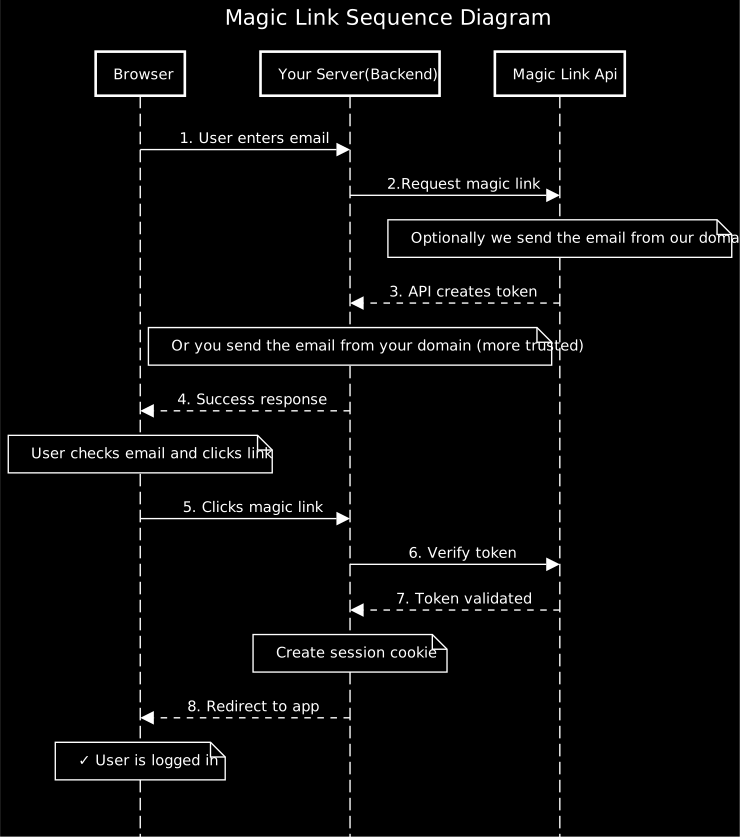
Flow Steps Explained
- User Initiates Login: User enters their email address in your login form
- Backend Requests Link: Your server calls Magic Link API with user's email
- Token Generated: API creates a unique, time-limited token and sends email
- User Notified: Browser shows "Check your email" message
- User Clicks Link: Email contains link with token parameter
- Backend Verifies: Your server validates the token with Magic Link API
- Authentication Confirmed: API confirms token is valid and returns user data
- Session Created: Your server creates a session and redirects user to app
Security Features in the Flow
| Step | Security Measure | Protection Against |
|---|---|---|
| Token Generation | Cryptographically random tokens | Token guessing attacks |
| Token Storage | Hashed in database | Database breaches |
| Token Expiry | 15-minute default lifetime | Stolen/intercepted links |
| Single Use | Token invalidated after verification | Replay attacks |
| HTTPS Only | Encrypted transport | Man-in-the-middle attacks |
| Rate Limiting | Max 5 requests/hour per email | Email bombing, brute force |
| Server-Side Verification | Backend validates all tokens | Client-side tampering |
Error Handling Flow
Common Failure Scenarios:

❌ Token Expired
   Browser → Server → API
   API Response: 404 Not Found
   User Action: Request new magic link

❌ Token Already Used
   Browser → Server → API
   API Response: 410 Gone
   User Action: Request new magic link

❌ Invalid Token
   Browser → Server → API
   API Response: 404 Not Found
   User Action: Check email for correct link

❌ Rate Limited
   Browser → Server → API
   API Response: 429 Too Many Requests
   User Action: Wait before requesting new link

✓ Proper Error Handling:
   1. Never expose internal errors to users
   2. Log errors for debugging
   3. Show friendly, actionable messages
   4. Provide clear next steps
Security Best Practices
Token Storage
- Don't commit tokens to version control
- Don't include tokens in frontend code
- Don't log tokens in application logs
- Use environment variables or secrets managers
HTTPS Only
Always use HTTPS in production to prevent man-in-the-middle attacks. Magic links sent over HTTP can be intercepted.
Rate Limiting
The API includes built-in rate limiting, but you should also implement rate limiting in your application:
- Limit login attempts per email address
- Limit requests per IP address
- Monitor for unusual patterns
Token Validation
Always verify magic link tokens on your backend-never trust frontend validation alone. Each token is:
- Single-use: Can only be verified once
- Time-limited: Expires after configured duration (default 15 minutes)
- Configuration-specific: Only valid for the configuration that created it
Session Management
After verifying a magic link, create a secure session:
- Use HTTP-only cookies for session tokens
- Set appropriate session expiry times
- Implement logout functionality
- Consider implementing refresh tokens for long-lived sessions
Troubleshooting
Common Issues
401 Unauthorized
Problem: Getting 401 errors when making API requests.
Solution:
- Verify your client token is correct
- Check that the Authorization header is properly formatted
- Ensure you're using "Bearer" (not "Basic") authentication
- Generate a new client token if the old one was compromised
404 Not Found (Token)
Problem: Token verification returns 404.
Solution:
- The token may have expired (default 15 minutes)
- Check that the token wasn't already used (single-use)
- Verify the token string is complete and not truncated
- Ensure you're using the correct configuration
429 Too Many Requests
Problem: Rate limit exceeded.
Solution:
- Wait before making another request (check Retry-After header)
- Review your rate limit settings in the configuration
- Implement exponential backoff in your application
- Contact support if you need higher limits
Email Not Received
Problem: User doesn't receive the magic link email.
Solution:
- Check spam/junk folders
- Verify the email address is correct
- Check configuration email settings
- Review email delivery logs in the Monitoring page
- Verify your domain's email reputation
Redirect Not Working
Problem: After verification, redirect doesn't work.
Solution:
- Check that redirect URL is configured correctly
- Ensure redirect URL uses HTTPS in production
- Verify the URL is whitelisted in configuration
- Check for JavaScript errors in browser console
Testing Tips
- Use a test configuration for development
- Monitor API requests in the Monitoring page
- Check browser network tab for API errors
- Enable verbose logging in your backend
- Test with multiple email providers (Gmail, Outlook, etc.)
Need More Help?
If you're still experiencing issues, reach out to our support team with:
- Configuration ID
- Timestamp of the issue
- Error messages or API responses
- Steps to reproduce